
Download SiteKiosk Online and you can turn any Windows device into a secure, managed kiosk or interactive digital signage player in just a few minutes. In the video below, we walk through every step of how to download SiteKiosk Online, install it on your device, and get it ready to display your content. Use this tutorial as a written companion to the video so you can follow along click‑by‑click when you download SiteKiosk Online for testing, deployment, or rollout in your production environment.
How to Import Projects in SiteKiosk Online: Step-by-Step Guide
Digital signage setups often require flexibility. Whether you’re recovering a backup, migrating to a new account, or incorporating free templates from the SiteKiosk website. This tutorial walks you through importing a project into SiteKiosk Online, compatible with both on-premise and cloud servers like us.sitekiosk.online.
Why Import a Project?
Importing is handy for several scenarios:
-
Restoring a locally backed-up project after accidental deletion.
-
Transferring projects to a new account.
-
Loading free templates to use entirely or copy specific elements (like layouts or widgets) into your existing projects.
Prerequisites
-
A SiteKiosk Online account with login access.
-
An exported project file (.zip) from a previous export or download.
Quick Tip: If you haven’t exported yet, go to your Projects menu, select a project, and click Export Project. Download the file to your local machine for safekeeping.
Step-by-Step Import Process
Follow these steps in your SiteKiosk Online dashboard:
- Log in to Your Account
Access your SiteKiosk Online portal (cloud or on-premise). - Navigate to Projects
From the main menu, select Projects.
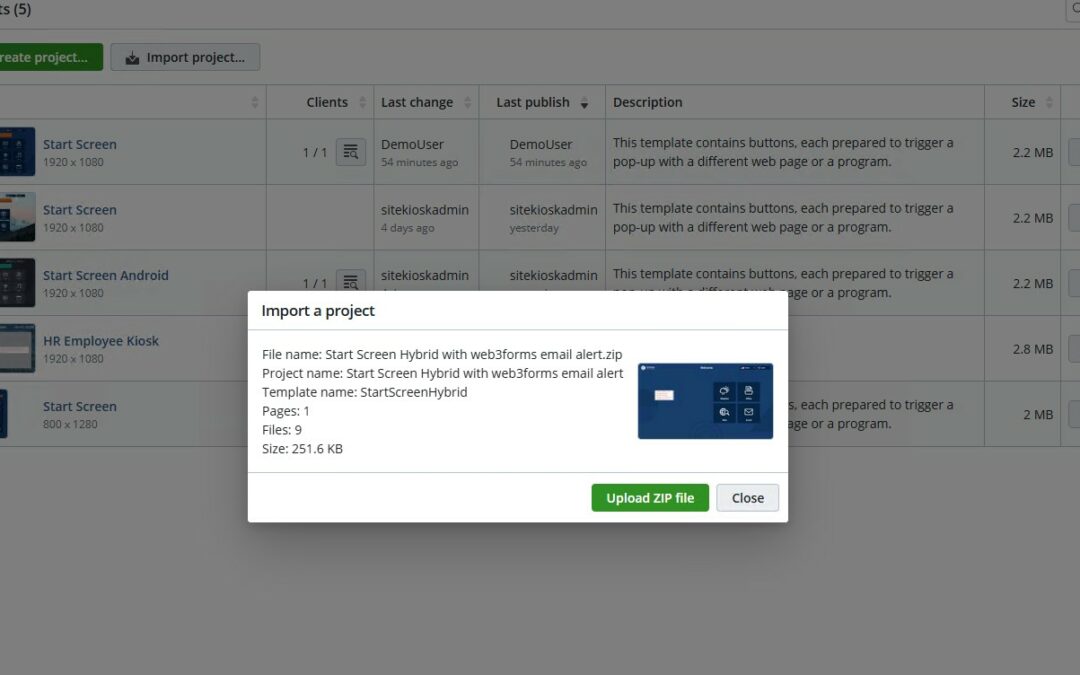
Click the Import Project button. - Select and Upload the File
Choose your exported project .zip file from your computer and click Open.
Confirm the upload when prompted. The system will process the file quickly. - Verify the Import
Once uploaded, the new project appears in your Projects list.
You can now open, edit, or copy elements (e.g., buttons, PDFs, calendars) from it into other projects.
Publishing the Imported Project
After importing:
- Select the new project and click Open to preview.
- Click Publish to deploy it to your devices.
- Choose deployment options, such as immediate display on restart.
- Monitor the deployment status. Devices running SiteKiosk Online will download the project, restart, and display content like buttons, PDFs, or calendar events.
Expected Timeline: Deployment is fast; devices restart automatically to show the new layout.
Pro Tips for Success
-
Copy Elements: Import a template, then copy-paste components into your main project for quick customization.
-
Backup Regularly: Always export projects before major changes.
-
Test on a Single Device: Publish to one kiosk first to verify before rolling out fleet-wide.
-
Troubleshooting: Ensure your file isn’t corrupted and that you have sufficient account permissions.
This process streamlines project management, saving time on re-creations. For more SiteKiosk Online tutorials, check our resource library or contact support.
FAQ: Importing Projects in SiteKiosk Online
What is project import and who needs it?
Project import lets you upload a previously exported .zip file into your SiteKiosk Online account. It’s ideal for restoring backups, migrating to new accounts, or loading free templates from the SiteKiosk website to reuse elements like layouts or widgets.
Does this work with both cloud and on-premise servers?
Yes, the import process works identically for cloud servers (e.g., us.sitekiosk.online) and on-premise setups.
Where do I find the Import Project button?
In your SiteKiosk Online dashboard, go to the Projects menu. The Import Project button is right there—select your .zip project file and confirm the upload.
How do I export a project first (for backup)?
From the Projects menu, select a project and click Export Project. Download the file to your local machine for safekeeping.
What happens after I import a project?
The project appears in your Projects list. You can open it for editing, copy elements (buttons, PDFs, calendars) to other projects, or publish directly to devices.
How long does importing and publishing take?
Importing is quick (seconds). Publishing deploys to devices rapidly. SiteKiosk devices download the project, restart, and display content immediately if that option isselected.
Can I test the imported project before full rollout?
Yes, publish to a single device first. Monitor the deployment status, then expand to your fleet once verified.
What file format is required?
Use .zip project files only—exported directly from SiteKiosk Online or downloaded templates.
What if the import fails?
Check file integrity (not corrupted), account permissions, and file size limits. Re-export if needed, or contact SiteKiosk support.
Can I copy parts of an imported project?
Absolutely—open the imported project, select elements (e.g., buttons or calendars), copy them, and paste into your active project for customization.
Do I need special permissions?
Standard account access suffices, but admins may control project limits. Check with your account owner if restricted.